The desktop workbench, view by view
Everything the rutken CLI does, the desktop app does too — with
the graph, the decompiled code, the triage queue, and the live capture all on
screen at once. This is a guided tour of the app with a real target loaded
(InjuredAndroid, one of the Proving Grounds
apps). Every screenshot below is an actual capture of the running app — nothing
is a mock-up. The edition shown is Pro Plus, so every panel is visible,
including the paid offense and bespoke surfaces; the tier pills tell you which
ones are free and which need a plan.
Launch & editions
The GUI ships inside the same signed launcher as the CLI. After installing, start it with:
rutken-guiThe launcher decides which edition to run from your sign-in: Community (free, no account) gives you the full static workbench plus free Frida capture; signing in on a paid plan unlocks the intercept, bespoke-agent, and offense surfaces. Rutken compiles a separate binary per tier, so a Community build does not contain the paid code at all — the panels you do not have are not there to unlock, they simply are not shipped. This guide shows the Pro Plus binary, which carries every panel.
You can also hand the app a target and a starting view straight from a shell — useful for scripting demos or jumping a teammate to the exact screen you are looking at. Opening a target is otherwise done from File → Open or the target picker in the top bar.
The workbench layout
Four regions frame every view. Across the top bar: the workspace, the loaded target, the device selector, and two engine chips — Frida (the free hooking engine) and Bespoke agent (Pro) (Rutken's own no-repack hooking engine) — then sign-in. Below it a classic menu bar (File / Edit / View / Analysis / Dynamic / Attack / Plugins / Tools / Help). Down the left edge is the rail, which is how you move between views; the status bar along the bottom names the current view and whether an analysis is running.
The rail, top to bottom, on Pro Plus:
- Targets — load and switch apps
- Static — class tree, call graph, findings
- Editor — read decompiled sources
- Triage — the findings queue
- Deps — SCA components & CVEs
- Dynamic — live on-device capture intercept · Pro
- Attack — offense surface Pro Plus
- Report — assemble & export
- CI/CD — pipeline gating Pro
- Plugins — the rule-pack registry
- MCP — bring your own AI agent
Static: the class tree and call graph
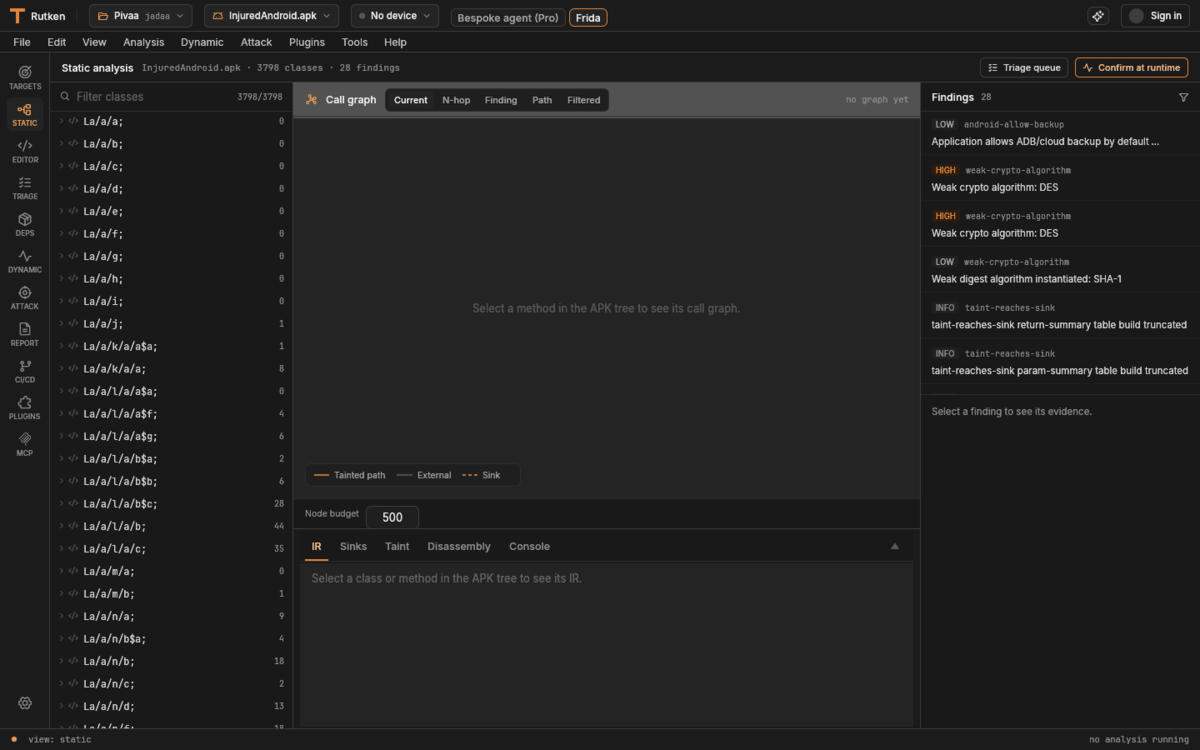
The Static view is the center of gravity for reading an app without running it. On the left is the full class tree lifted from every DEX; the center is an interactive call graph (current method, N-hop neighbours, paths, and a filtered view) with a node budget so even large apps stay legible; the right rail is a live findings list you can click straight into the evidence. Picking a method in the tree draws its call graph and IR; the taint and data-flow overlays mark tainted paths from source to sink.
Editor: read the decompiled code
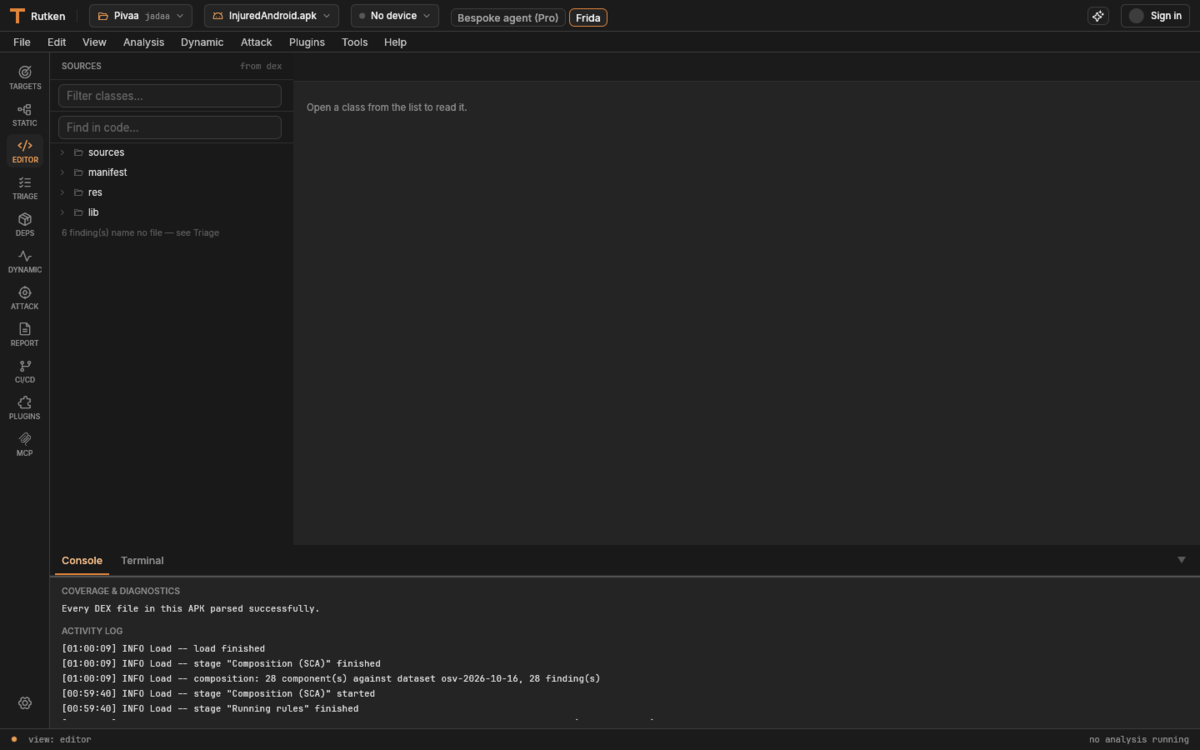
The Editor opens the app's sources, manifest, resources, and native libraries in a filterable tree with a full-text Find in code. Open a class to read it; findings that point at a specific line deep-link here. The docked Console is also your trust check: its coverage & diagnostics line confirms whether every DEX parsed, and the activity log shows each analysis stage — load, rules, and the SCA composition pass — with timings, so you always know what the findings were computed from.
Triage the findings
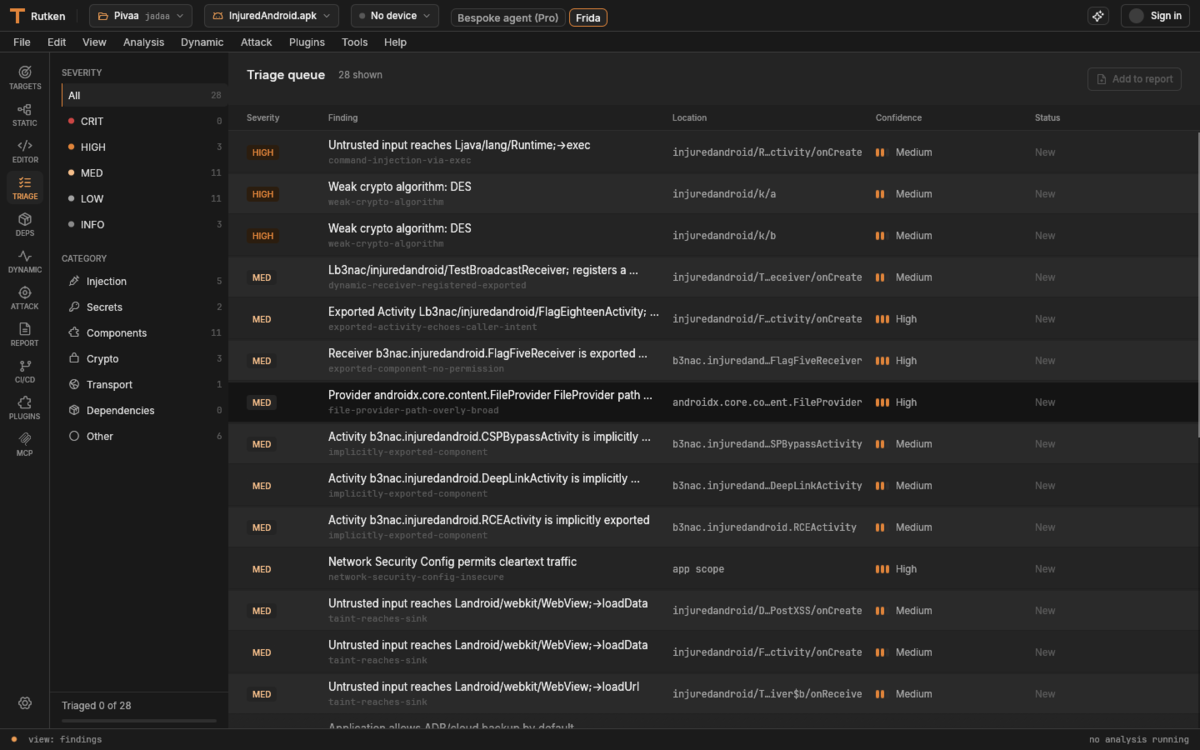
Triage is where a scan becomes work you can act on. The queue lists every finding with its severity, rule id, location, and a confidence bar; the left filters slice by severity (Crit / High / Med / Low / Info) and by category (Injection, Secrets, Components, Crypto, Transport, Dependencies, …) with live counts. Each row expands to its evidence — the exact class, method, and tainted path — and you set a status and Add to report as you work through the list. The header tracks how many of the total you have triaged.
Dependencies & CVEs (SCA)
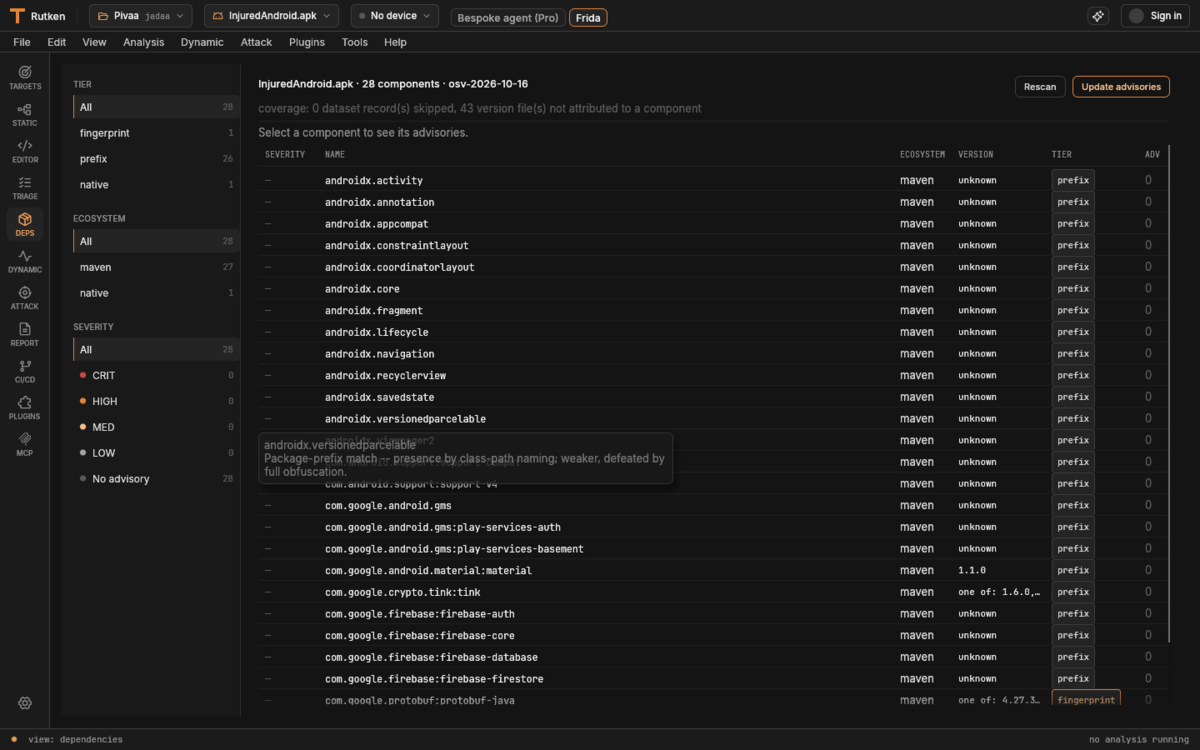
The Deps view is software-composition analysis: Rutken fingerprints the third-party libraries baked into the app — by class shape, not just a manifest you have to trust — and cross-references them against the vulnerability dataset. You get the full component inventory with the detected version and a per-component advisory count; Rescan re-runs the match and Update advisories pulls a fresh dataset. The header dates the dataset so a clean result is attributable to a point in time, and it is honest about coverage — components it could not pin are called out rather than silently dropped.
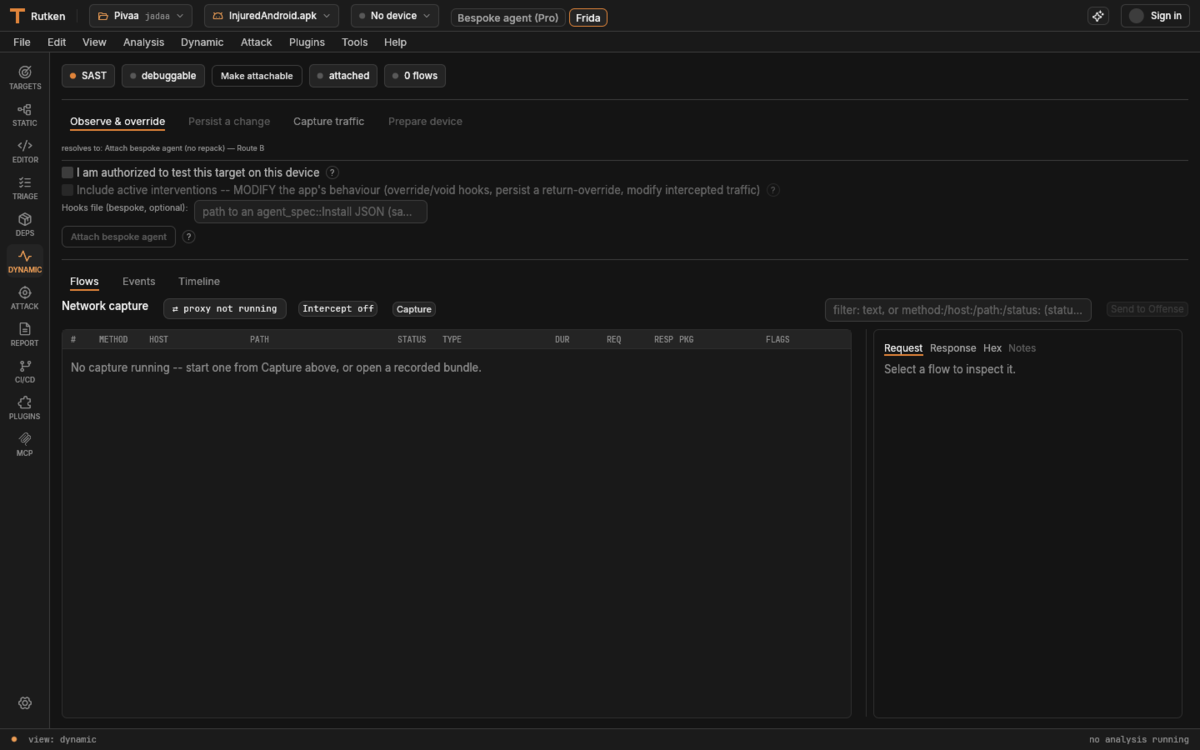
Dynamic capture observe · Freeintercept · Pro
The Dynamic view runs the app on a connected device and reads what it actually does. The tabs walk the workflow: Observe & override, Persist a change, Capture traffic, and Prepare device. Free Community capture is pure observation — watch and record traffic and behaviour with Frida. The paid tiers add active intervention: void or override hooks, persist a return-override, and modify intercepted traffic, delivered by Rutken's no-repack bespoke agent (Route B). Captured requests land in the Network capture table (method, host, path, status, type) with an intercept toggle and a request / response / hex inspector, and a flow can be sent straight to the Attack view.
Everything is gated behind an explicit "I am authorized to test this target on this device" acknowledgement, and every active action is logged — intervention is opt-in, per target, on purpose.
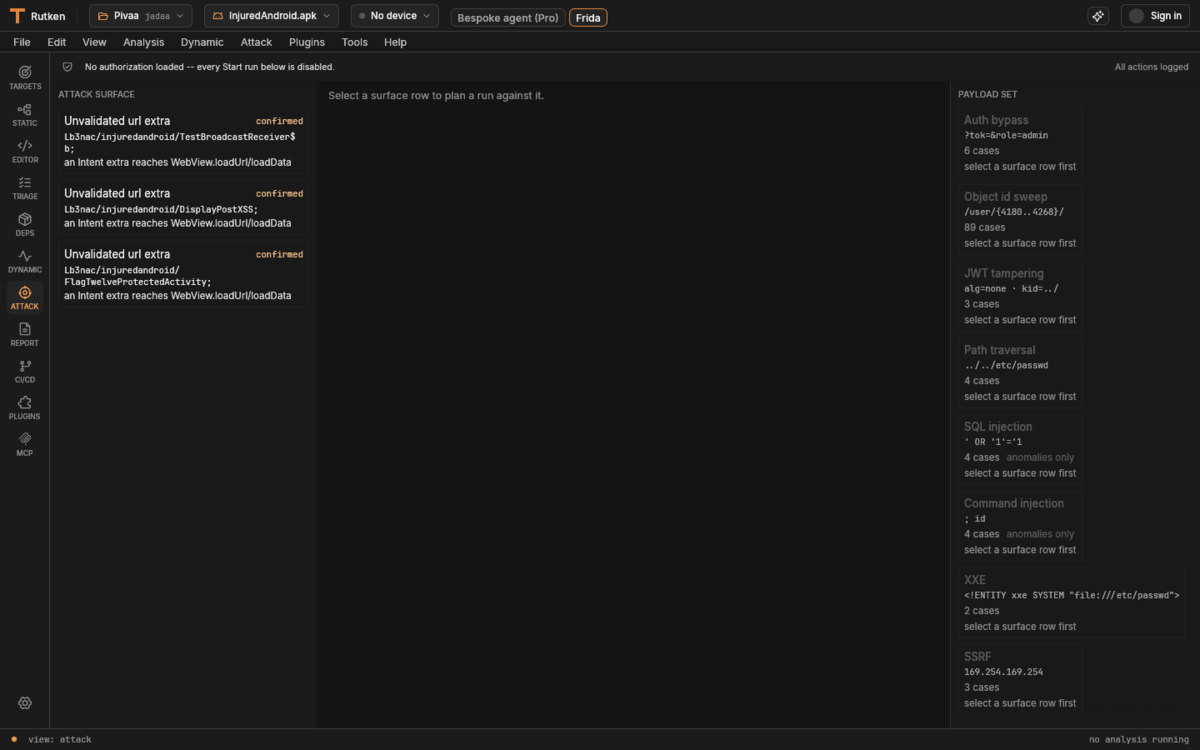
Attack surface Pro Plus
The Attack view turns confirmed static findings into something you can
probe. The left column is the attack surface — each reachable sink
(here, intent extras that reach WebView.loadUrl) marked
confirmed by the engine. Select a surface row and the right
payload set arms the matching family — auth bypass, object-id sweep,
JWT tampering, path traversal, SQL injection, command injection, XXE, SSRF —
each with a concrete sample and a case count. It is the same source-to-sink
reasoning as the static engine, pointed outward.
Like the Dynamic view, it fails closed: with no authorization loaded every Start button is disabled and all actions are logged. This is an authorized-testing tool, not a fire-and-forget scanner.
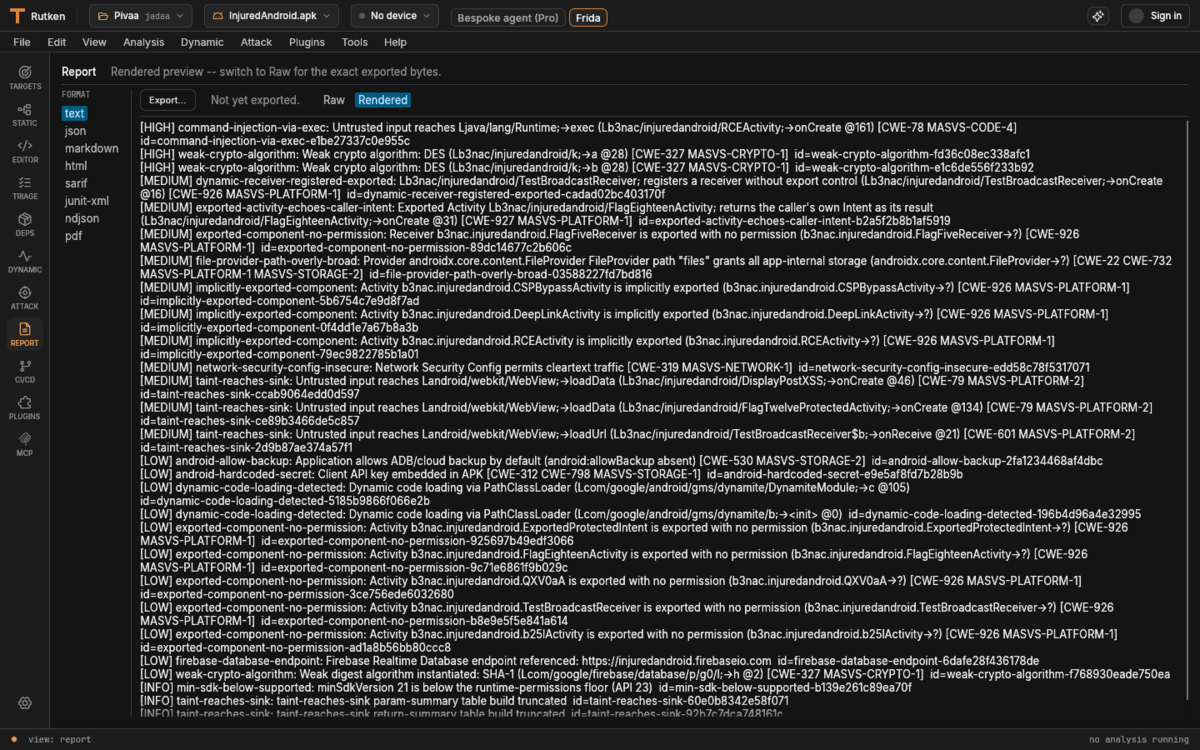
Report
The Report view assembles the findings you triaged into a deliverable. You get a live rendered preview and a raw toggle, with each finding carried through with its severity, rule id, location, and the standards mappings (CWE and MASVS) the engine attached. From here you export to the machine and document formats the CLI produces, so the GUI and a CI run emit the same artifact.
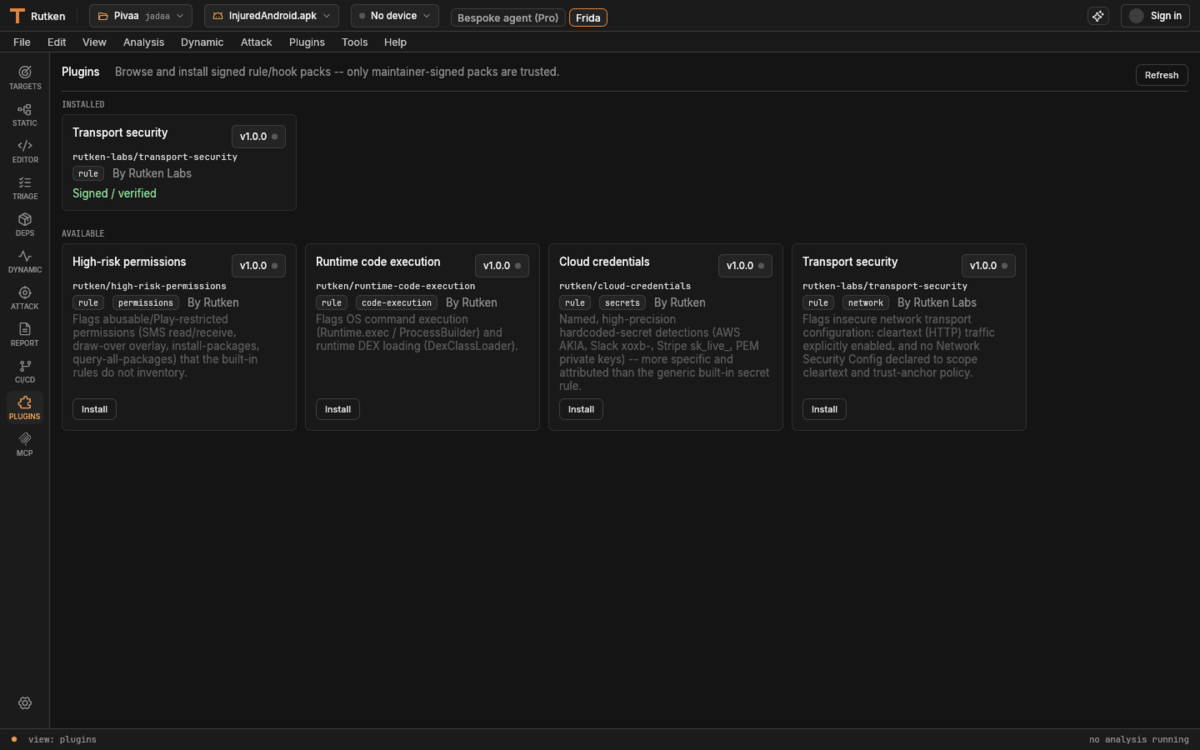
Plugins
The Plugins view is the in-app registry for rule packs. Browse and install signed packs — only maintainer-signed packs are trusted, and the signature is shown on each. Packs extend the detection catalog (high-risk permissions, runtime code execution, cloud-credential detectors, transport-security rules, and more); install one and its rules join your next scan. Writing your own is covered in Writing a Rutken plugin.
MCP & the AI agent
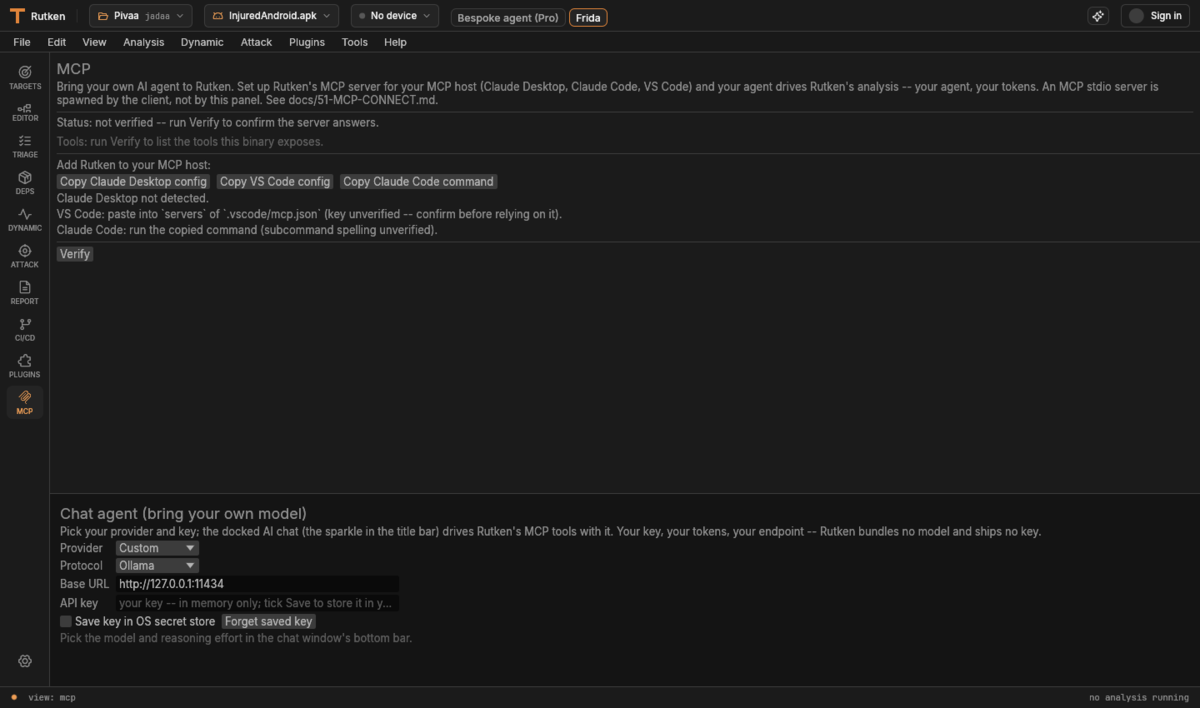
The MCP view wires Rutken into your own AI agent. It sets Rutken up as an MCP stdio server for a host like Claude Desktop, Claude Code, or VS Code — one click copies the right config for each — so your agent drives Rutken's analysis tools directly. It is strictly bring-your-own: your agent, your key, your tokens. Rutken bundles no model and ships no key, and Verify confirms the server answers before you rely on it.
The same panel configures the docked chat agent (the sparkle in the title bar): pick a provider and protocol, point it at a base URL, and supply a key that stays in memory unless you explicitly save it to the OS secret store. Model choice and reasoning effort are set in the chat window.
What each tier unlocks
Every edition is a complete tool, not a crippled demo. The split, specific to the GUI:
- Community (free). The entire static workbench — Targets, Static, Editor, Triage, Deps, Report, Plugins, MCP — plus free Frida capture in the Dynamic view (observe and record). No account, no device required for the static side.
- Pro. Adds active intervention in Dynamic (void/override hooks, return-overrides, traffic modification) via the bespoke agent, the CI/CD pipeline view, and device prepare/repack automation.
- Pro Plus. Adds the Attack surface (offense) and the full bespoke no-repack agent surface — the edition shown throughout this guide.
- Team / Team Plus / Enterprise. Everything above plus the shared Workspace for collaborative triage and sync, and the enterprise on-prem / air-gapped deployment.
The full capability-by-tier breakdown is on the pricing page. To try the paid surfaces, sign in on a plan and relaunch — the launcher swaps in the right edition automatically.